Character Reference Sheet vs Sprite Sheet: What Your 2D Game Needs
A character reference sheet shows an artist how to draw your character: its proportions, clothes, colors and appearance from different angles. A sprite sheet holds images the game displays, often frames of an animation.
For a walking character, you need both kinds of information. The design tells you what the character looks like; the animation frames show how it moves.
Start with the artwork you have
| What you have | What you need next |
|---|---|
| A character reference sheet with several views | Export one full-body view to use as a walk reference |
| One character drawing or pixel sprite | Generate a four-direction walk |
| Finished animation frames | Pack the frames in the free editor |
Use the reference sheet to settle the design
A reference sheet answers specific drawing questions. Which hand holds the staff? How far does the coat hang below the belt? What does the hat look like from behind?
Front, side and back views help resolve those details. Face close-ups, color swatches and short notes can explain features that are hard to see in a full-body drawing. Include what another artist needs to reproduce the design.
For a small game sprite, also look at the character at gameplay size. The hat and coat may be recognizable while a tiny belt buckle disappears. Decide which features matter before making the animation.
Add poses for the animation
A front view, a side view and a back view show three angles. A walk cycle needs several moments within a step: a foot reaching forward, the body passing over it, then the next foot moving through.
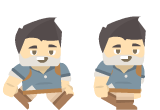
These are two existing walk poses from Kenney's Platformer Characters, used under CC0 and packed with the free editor. Each frame is 80 × 110 pixels; the sheet is 160 × 110. Download the PNG or preview the two frames.
For a four-direction walk, each direction has its own sequence. Your game plays the appropriate sequence as the character turns. Frame order, timing and alignment are set in the engine; the sprite sheet introduction explains how that works.
Choose one view for the walk generator
Sprite starts from one character image. If your artwork is on a reference sheet, export the original full-body view or crop that panel in your image editor. Include the feet and equipment, and leave out neighboring views, labels and color swatches.
Keep the complete sheet for reviewing the output. Compare the features you picked earlier across all four directions, then play each walk loop at gameplay size. Watch for a staff switching hands, a hat changing shape or feet sliding across the ground. Generated details can vary, so check the whole loop before choosing a result.
The character-to-walk guide covers the upload and download steps and shows the Ranger reference beside its generated directions. You can open that preset example in the generator without signing in or spending credits.
Add idle and import the frames
For a standing loop, open an eligible selected walk in My generations and choose Add idle. It creates a separate pack. Play the walk and idle side by side to check that the character looks right when switching actions.
Then follow the Unity PNG slicing guide, or pack the individual frames into a PNG and matching JSON atlas.
Table of Contents
Author
Categories
Tags
More Posts

Sprite Frame Size: How to Choose a Consistent Cell
Learn how canvas size, visible artwork, pivots, and grid math affect sprite frame dimensions before you pack an animation sheet.
Why Does My Sprite Character Change Between Directions?
Separate character changes from frame alignment and playback problems, then check the reference, equipment and each direction before using an AI walk cycle.
What Is a Sprite Sheet? Frames, Animation and Atlas Data
See how separate sprite frames become one image, how a game plays them, and when you need a regular grid or a JSON atlas.