Character reference to playable frames
Turn a character image into a four-direction walk
Start here when you have one character image and need walking poses for a top-down game. If you already have all the animation frames, use the free sprite sheet maker to arrange them instead.
What you will accomplish
This workflow uses Standard walk generation. You will check one character reference, review the four directions separately, and download a selected result. A correctly sized sheet is only the first check: the character, equipment and movement still need your review.
Open the character walk generator Input character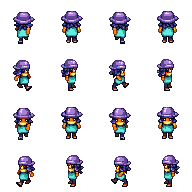
This is the existing Ranger demonstration, not a new generation. Compare the hat, body and equipment across directions. It shows how to inspect a result; it does not guarantee that your character will stay unchanged. Check the downloaded files for the dimensions of your own result.
Before you start
- Use one character you own or have permission to process. Choose a full-body view with visible feet and clearly separated equipment.
- Prepare a PNG, JPEG or WebP image. Check the upload form for its current file-size and image-dimension limits. A file can pass validation while still being a poor visual reference.
- A new AI generation requires sign-in and sufficient credits. The existing Ranger demonstration can be opened without signing in or spending credits.
Step-by-step workflow
- 1
Check the reference before uploading
Look at the character at the size it will appear in your game. Identify the features that must survive the turn: silhouette, main colors, headwear and any held equipment.
- Keep the whole character inside the image. Cropped feet or a weapon hidden against the body leave details unclear.
- Prefer one clearly readable pose over a collage of characters or multiple action panels.
- A cleaner reference may reduce ambiguity, but it cannot guarantee consistent unseen sides or equipment.
- 2
Explore the example, then choose your image
Open the generator and use “Try the example character” to inspect the existing Ranger walk. Switch between motion and the complete sheet. Upload your own character when you are ready to prepare a generation.
- Opening the example does not call the model or spend credits.
- Inspect each direction individually; a good front view does not establish the quality of the back or side views.
- Keep Standard selected for this workflow. Native HD is a separate option with its own eligibility and cost.
- 3
Check the account balance and submit deliberately
Sign in, confirm the selected image and read the generation cost before submitting. Standard generation uses 25 credits. Eligible new accounts receive a standard welcome gift of 35 credits; availability can vary by region, and gift credits expire after 30 days.
- Use the balance shown in your account rather than assuming that a welcome gift applies to you.
- Selecting a reference or signing in does not itself submit a generation.
- If the page shows an unavailable or insufficient-balance message, resolve that message before trying again.
- 4
Inspect the result in motion and frame by frame
Compare every returned direction with the reference and then play each walk loop at normal gameplay size. Select a result only after its visible details and movement fit your project.
- Check that south, east, north and west really face the expected directions. A direction label alone is not visual proof.
- Follow headwear, hands and equipment through the loop. Watch for disappearing items, side swaps and changes in body shape.
- Check the feet against a fixed ground line. Distinguish a sliding animation from an incorrectly aligned frame or an engine pivot problem.
- 5
Download, verify, then configure your engine
Download the selected walk pack and inspect its PNG files and manifest. Standard delivery uses 64 × 64 cells and 16 frames in total; the native artwork is 48px and padded for delivery. Padding does not add detail.
- Confirm the frame dimensions, transparent background and direction order in your own download. The demonstration asset is not a substitute for this check.
- Use the manifest and filenames to identify directions. Do not assume that another sprite-sheet convention uses the same row order.
- Set animation timing, clips, pivots and movement controls in your engine. The download does not create a finished Unity or Godot project.
Recommended settings
| Setting | Recommended value | Why it matters |
|---|---|---|
| Generation mode | Standard walk | Keep the first attempt focused on the four-direction walking task. |
| Delivered frame cell | 64 × 64px | Native 48px artwork is padded to this cell size; check actual files before slicing. |
| Delivered frames | 16 across four directions | Inspect every direction and the complete loop, not just the first frame. |
| Standard cost | 25 credits | Read the current balance and submission state before generating. |
| Playback and pivots | Choose in your engine | Frame geometry does not determine animation timing or how a character aligns in the scene. |
Check the result
- The selected result still reads as the intended character at gameplay size.
- Each labelled direction matches its visible orientation, with equipment checked across all frames.
- The downloaded files open, have the expected dimensions and transparency, and match the selected result.
- A short test in the destination engine confirms slicing, ordering, timing and pivots.
Common mistakes
Treating the sample as your generation
The Ranger sample is a previously generated demonstration. It is useful for learning the controls, but says nothing about a new character’s result.
Accepting the sheet because its grid is correct
Dimensions and frame count can be correct while the character or equipment changes. Check visual identity separately from file structure.
Expecting every action from one walk request
This workflow generates walking directions. Adding idle to an existing eligible character is a separate action; it does not establish support for attacks, jumps or arbitrary animation.
Continue with the right workflow
Frequently asked questions
Can I generate without an account?
New AI generation requires sign-in. You can inspect the existing Ranger example and use the free tools for existing artwork without submitting a generation.
Will the character and equipment remain identical?
No exact-match guarantee is made. Generated sides and frames can change visible details. Review every direction before choosing a result.
Should I use Standard or Native HD?
Start from your game’s required pixel scale. Standard and Native HD have different output sizes, costs and eligibility; check the available options in the generator. A larger output is not a guarantee of better identity or movement.
Where do I go if I already have the frames?
Use the free sprite sheet maker to pack them, or the texture atlas tool when your importer needs matching JSON rectangles. You do not need to generate the frames again.
Continue with another workflow
How to make a sprite sheet from images
Turn PNG, JPG, or WebP animation frames into a clean sprite sheet. Choose a grid, verify frame order, and export PNG plus atlas metadata.
How to convert a GIF to a sprite sheet
Convert an animated GIF into a PNG sprite sheet in your browser while preserving frame order and checking the original frame timing.
How to import a sprite sheet into Unity 6
Prepare a regular sprite sheet, import it into Unity 6, slice it by cell size, and build a clean 2D animation without blurry pixel art.
How to animate a sprite sheet in Godot 4
Prepare a regular sprite sheet, add its frames to AnimatedSprite2D in Godot 4, and verify grid selection, speed, looping, and pixel quality.